Whether you’re rebuilding a website around an existing brand, matching a new UI to a client’s logo, or just trying to figure out the exact shade of blue in a downloaded icon set, extracting an accurate color palette from an SVG or logo is a common, specific task. This guide walks through how to do it correctly for both SVG files and raster (PNG/JPG) logos, and the mistakes that most often produce a messier palette than the original design actually has.
- Extracting from an SVG reads exact, designed color values. Extracting from a raster logo samples and estimates them.
- Anti-aliasing and gradients commonly produce many near-duplicate shades that should be merged into one.
- Always extract from the original vector source when you have access to it, not a raster export of it.
Two very different starting points
How you extract a palette depends entirely on what kind of file you’re starting from, and it’s worth understanding why before jumping into either method.
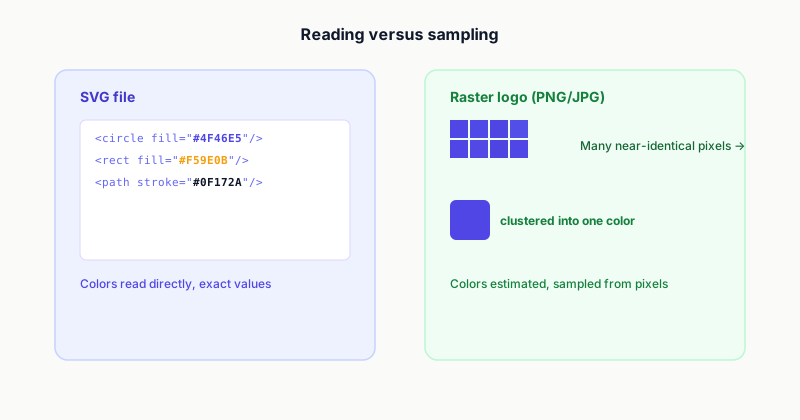
An SVG file stores its colors as literal text: fill="#4F46E5", stroke="rgb(24, 24, 27)", and so on. There’s no guessing involved, the exact color values are sitting right there in the markup. Extraction here is really a parsing task, scanning the file for every fill, stroke, and gradient stop-color value and collecting the unique ones.
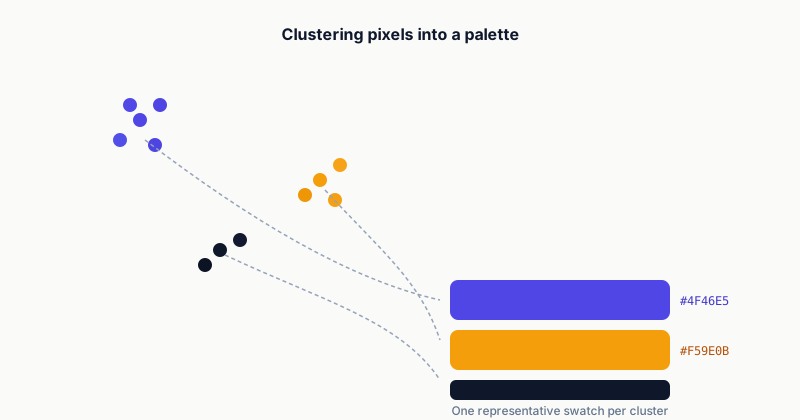
A raster logo (PNG, JPG) has no such list. It’s just a grid of individual pixel colors, and any given “color” in the design might actually be represented by dozens of very slightly different pixel values around its edges, from anti-aliasing, compression, or subtle gradients. Extraction here means sampling pixels and grouping similar ones together, closer to color quantization than simple reading.
Method 1: Extracting colors directly from an SVG
Since an SVG’s colors are already stored as text, the actual process is straightforward:
- Scan for every color-carrying attribute. That means
fill,stroke, and anystop-colorvalues inside<linearGradient>or<radialGradient>definitions, colors can be set in more places than just the obviousfillon a shape. - Normalize the format. SVG allows colors to be written as HEX (
#4F46E5),rgb(),hsl(), or even named colors likerebeccapurple, all valid, all needing to be converted to one consistent format before comparing them. - Deduplicate. Collect the unique values. A simple logo might resolve to 2-4 real colors even if the raw markup technically contains more entries, since the same color is often repeated across several shapes.
- Watch for opacity. A
fill-opacityor an alpha channel in anrgba()value changes how a color actually renders, even though the base color value is identical, worth deciding whether your palette should track opacity variants separately or just the base hues.
<svg viewBox="0 0 100 100">
  <circle cx="30" cy="50" r="20" fill="#4F46E5" />
  <rect x="55" y="30" width="40" height="40" fill="#F59E0B" />
  <path d="M20 80h60" stroke="#0F172A" stroke-width="4" />
</svg>
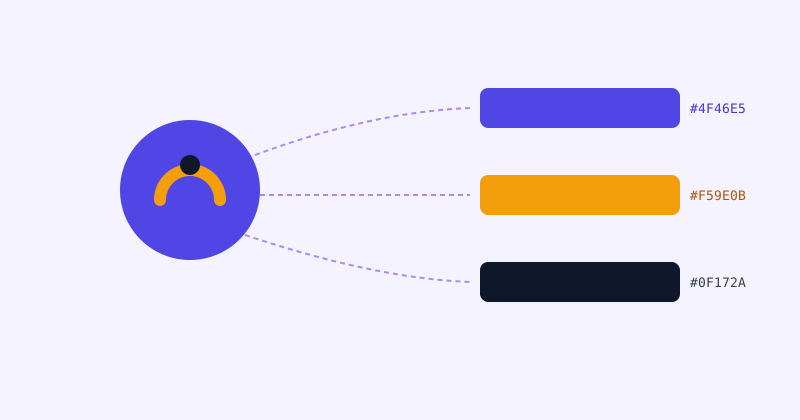
From that example, the resolved palette is exactly three colors: #4F46E5, #F59E0B, and #0F172A, no sampling or estimation needed, they’re just read straight out of the file. A SVG Palette Extractor automates exactly this scan, handling gradients and nested groups that would be tedious to check by hand.
Method 2: Extracting a palette from a raster logo
Without stored color data to read, extracting from a PNG or JPG logo works differently, closer to how a design tool’s eyedropper or a photo editor’s “extract palette” feature works:
- Sample pixels across the image, not just a handful of individual points, since a single pixel could land on an anti-aliased edge and give a misleading color.
- Cluster similar colors together. Colors that are visually indistinguishable but technically different pixel values (a common byproduct of JPG compression especially) get grouped into a single representative shade rather than reported as separate colors.
- Rank by prevalence. The colors that cover the most pixel area are usually the ones that matter for a brand palette, a few stray pixels of an unusual color are more likely to be a compression artifact than an intentional design choice.
- Discard near-white or near-black background noise, unless the logo is genuinely meant to include pure white or black as a brand color, background and shadow pixels can otherwise dominate the result.
If you’re working from a raster logo and eventually want to use the result as a design system palette (for example, generating Tailwind color tokens), an Image to Tailwind Palette tool handles the sampling and outputs ready-to-use palette tokens directly, rather than leaving you to convert swatches manually afterward.
Common mistakes that produce a messier palette than expected
- Extracting from a low-resolution or heavily compressed export. JPG compression especially introduces color noise around edges that clean vector source files don’t have. If a vector version of the logo exists anywhere, use it instead.
- Not merging near-duplicate colors. A palette listing
#4F46E5,#4E45E4, and#5047E6as three separate colors is very likely one intended brand color with minor rounding differences, not three deliberate choices. - Ignoring gradients entirely. A gradient’s start and end
stop-colorvalues are both real, intentional brand colors, skipping them because they’re “inside” a gradient definition rather than a plainfillmisses genuine palette entries. - Treating opacity variants as new colors. A brand color at 100%, 50%, and 20% opacity is still one base color, not three, unless your design system specifically wants those as separate named tokens.
From palette to practice: using the colors consistently
Once you have a clean, deduplicated palette, the practical next steps usually involve converting formats and applying the colors consistently:
- Format conversion. Design tools, CSS, and Tailwind configs don’t always want the same format. A Color Format Converter converts a HEX value to RGB, HSL, or OKLCH as needed, useful when your extracted palette is in one format but your codebase’s design tokens are set up in another.
- Enforcing the palette across existing assets. If you’ve extracted a definitive brand palette and want to make sure every SVG icon in a set actually uses those exact values (rather than slightly-off approximations from various sources), a Batch Color Replacer can swap near-matching colors across many files at once to the correct canonical value.
The short version
Extracting a color palette works differently depending on the source: an SVG’s colors are literal text values you can read directly, while a raster logo requires sampling and clustering pixel data to approximate the same result. Either way, the biggest quality difference comes down to two things, using the cleanest source file available, and deliberately merging near-duplicate shades that anti-aliasing, compression, or gradients tend to introduce, rather than treating every technically-distinct pixel value as its own color.