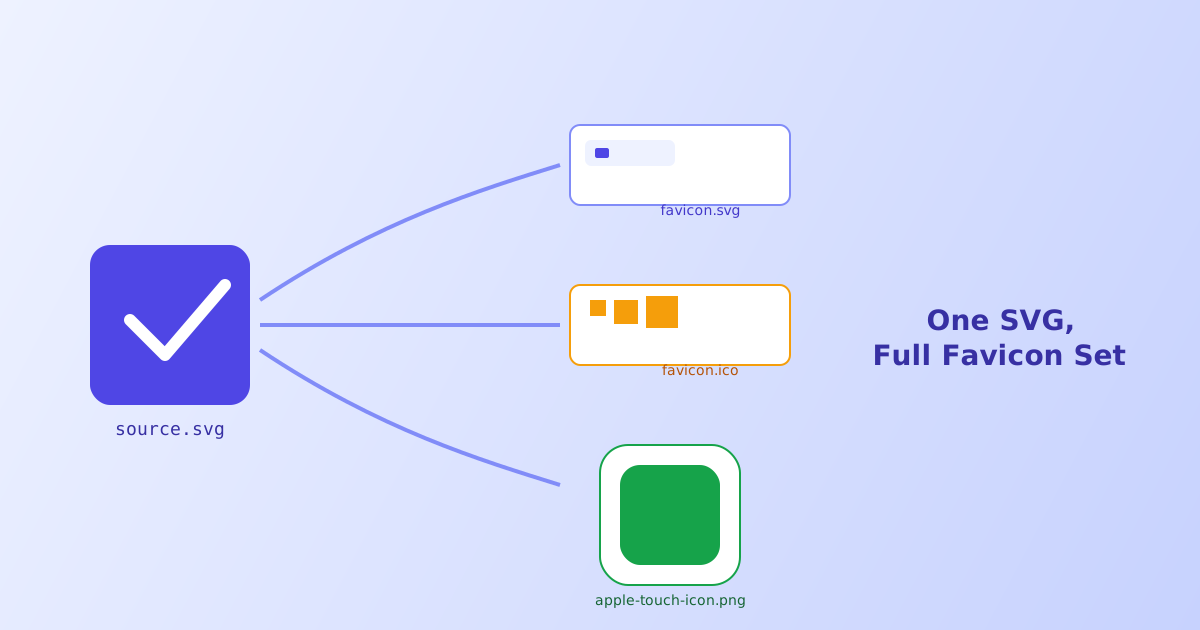
A favicon looks like a tiny detail, but it’s actually rendered in more places than almost any other asset on your site: browser tabs, bookmark bars, browser history, mobile home screens, and search results in some browsers. Each of those contexts expects a slightly different file, size, or format, which is why “just export a PNG” tends to leave gaps. This guide covers what a complete favicon set actually needs and how to generate the whole thing from one source SVG.
- A complete favicon set needs an SVG favicon, a multi-size .ico fallback, and an Apple touch icon at minimum
- SVG favicons are supported by most modern browsers but Safari still requires the .ico fallback
- A single .ico file should bundle 16x16, 32x32, and 48x48 sizes rather than just one
- Simplify detailed logos before shrinking them, since fine detail disappears at 16x16
- Every icon needs its own `` tag in `<head>`, generating the files alone isn't enough
What a Complete Favicon Set Actually Includes
“Favicon” often gets used loosely to mean just the browser tab icon, but a properly covered site actually serves several distinct files:
favicon.svg— a modern, infinitely scalable favicon that current versions of Chrome, Firefox, and Edge will use directlyfavicon.ico— a legacy multi-resolution file that Safari and older browsers request by default, bundling several fixed pixel sizes into one fileapple-touch-icon.png— a 180x180 PNG used when someone adds your site to an iOS or iPadOS home screen- A
web manifesticon set — additional sizes (typically 192x192 and 512x512) referenced bymanifest.jsonfor Android home screens and installable web apps
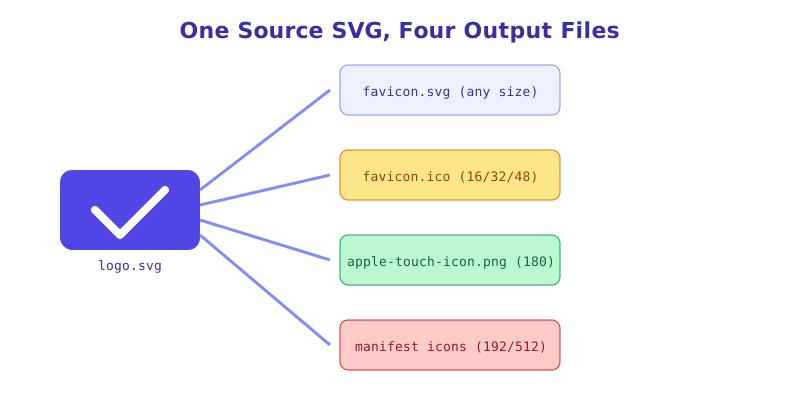
Skipping any one of these doesn’t break the site, but it does mean some visitors see a generic blank-page icon instead of your brand, usually without you noticing since it depends on which browser or device you personally test with.
Step-by-Step: Generating the Set
- Start with a square, simplified SVG. If your logo includes a wordmark, isolate just the icon mark or monogram, since a full logo compressed into a 16px square usually turns to mush. Set the
viewBoxto equal width and height (for example0 0 512 512) with the artwork centered. - Validate it first. Run the source through the SVG Viewer & Validator to confirm it has a clean, single
viewBoxand no leftover editor artifacts that could render oddly at tiny sizes. - Optimize it. Pass it through the SVG Optimizer to strip unnecessary precision and metadata, since favicon files get requested on every single page load.
- Generate the full set. Upload the cleaned SVG to the Favicon Generator, which outputs
favicon.svg, a real multi-sizefavicon.ico, and the PNG sizes needed for touch icons and web manifests, all from that one source file. - Add the HTML tags. Copy the generated
<link>tags into your site’s<head>, covering each format so every browser and device requests the right file rather than falling back to a default. - Spot-check across contexts. Look at the icon in an actual browser tab, in a bookmark, and, if possible, added to a phone home screen, since each renders at a different size and will expose different legibility issues.
Why One PNG Export Isn’t Enough
A common shortcut is exporting a single 512x512 PNG from a design tool and pointing <link rel="icon"> at it, expecting the browser to scale it down as needed. This mostly works for one context and quietly fails in others.
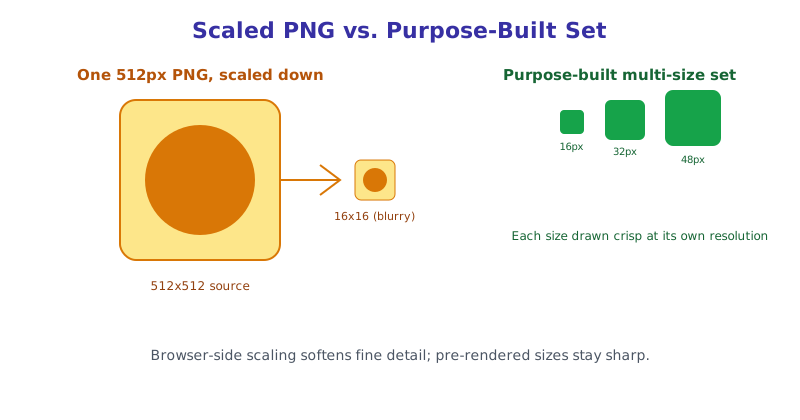
Browser and OS scaling algorithms aren’t optimized for shrinking detailed artwork down to 16 pixels, so fine strokes and small gaps tend to blur into a gray smudge. A proper .ico file avoids this by including pre-rendered, purpose-fit versions at each common size rather than relying on the browser to scale one image down on the fly.
The HTML Tags Each Icon Needs
Generating the files is only half the job, they also need to be referenced in <head> or most browsers will silently fall back to requesting /favicon.ico from your site root and nothing else:
<link rel="icon" href="/favicon.svg" type="image/svg+xml">
<link rel="icon" href="/favicon.ico" sizes="any">
<link rel="apple-touch-icon" href="/apple-touch-icon.png">
<link rel="manifest" href="/site.webmanifest">
The order matters less than completeness here: browsers that understand image/svg+xml will generally prefer the SVG for its sharpness at any size, while everything else falls through to the .ico file.
The short version
A real favicon set is more than one exported PNG, it’s an SVG favicon for modern browsers, a multi-size .ico fallback for the rest, and dedicated touch icon sizes for mobile home screens, all generated from one clean, square source SVG. Simplify the artwork before shrinking it, since detail that reads fine at full size disappears at 16 pixels, and don’t forget the <link> tags in <head>, since a generated file that’s never referenced does nothing. The Favicon Generator produces the whole set, including a genuine multi-resolution .ico file, directly from a single uploaded SVG.