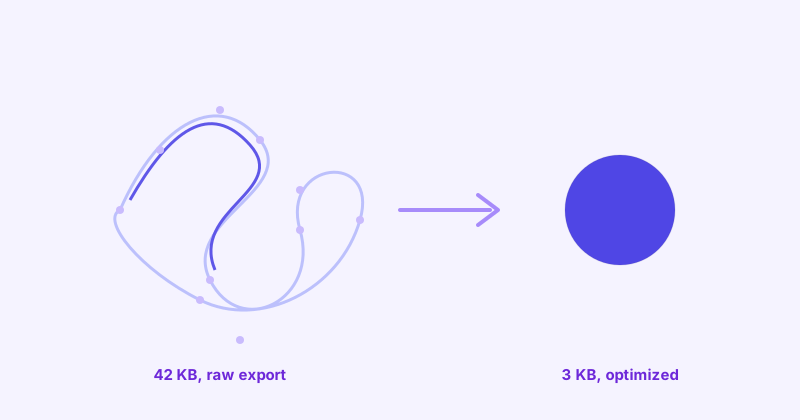
Open an SVG exported straight out of Figma or Illustrator in a text editor, and it rarely looks like the clean, minimal markup you’d write by hand. It’s usually padded with editor metadata, excessive decimal precision, and structural leftovers from the design canvas, none of which the browser needs to render the image correctly. This guide covers what that extra weight actually is, which parts are safe to remove, and how to reduce SVG file size meaningfully without visibly degrading the image.
- Most of an exported SVG's file size is editor metadata and excess precision, not the actual shape data.
- Optimization is a tradeoff, not a free win — pushed too far, it can flatten curves or strip accessibility attributes.
- Server compression (gzip/Brotli) and file optimization solve different problems and work best together.
Why exported SVGs are so much larger than they need to be
Design tools aren’t optimizing for file size when they export SVG, they’re optimizing for round-tripping the file back into the same tool without losing any editor-specific information. That priority is exactly backwards from what a browser needs.
A typical Illustrator or Figma export includes several categories of content that have zero visual effect on the rendered image:
- Editor metadata and namespaces — XML namespace declarations and comments referencing the specific application and version that created the file
- Excess coordinate precision — path data like
12.384729384729dwhen12.38renders visually identically at any normal screen size - Redundant groups — nested
<g>elements left over from the design canvas’s layer structure, sometimes wrapping a single shape in three or four unnecessary levels - Unused definitions —
<defs>entries for gradients, clip paths, or filters that were part of the design process but aren’t actually referenced anywhere in the final shape
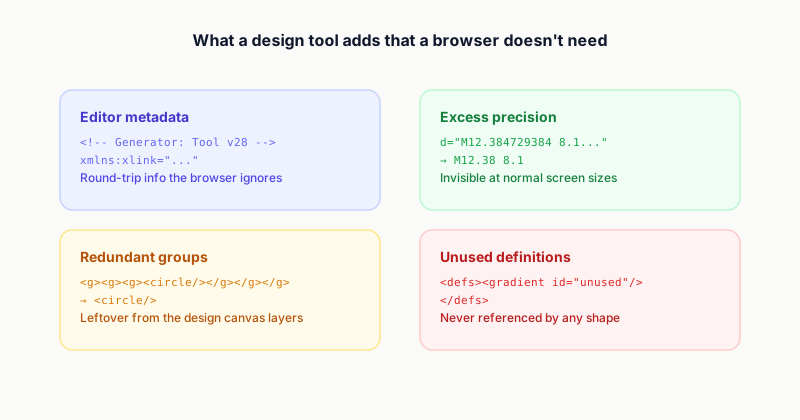
None of it is a mistake on the design tool’s part, it’s just a different priority than the one you have when shipping to production.
What optimization actually removes
Stripping that overhead out is what an SVG optimizer does, and the size difference is usually dramatic. A logo or icon that exports at 15-40KB from a design tool commonly optimizes down to under 2KB, with no visible change to the rendered image at all.
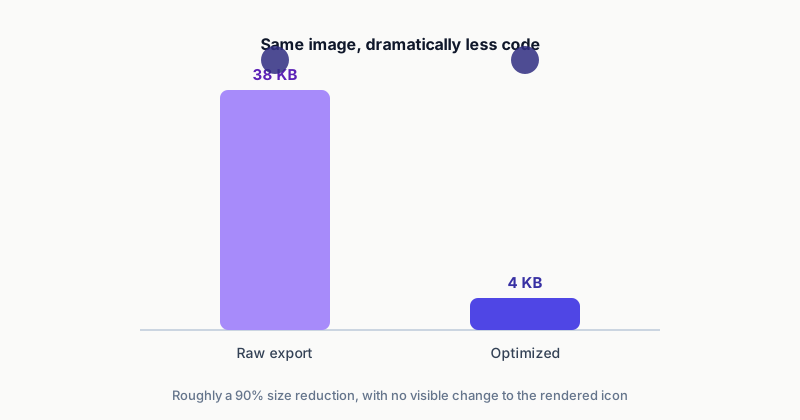
Here’s a real before-and-after on a simple shape, exaggerated slightly for clarity:
<!-- Before: 312 bytes -->
<svg xmlns="http://www.w3.org/2000/svg" xmlns:xlink="http://www.w3.org/1999/xlink"
     version="1.1" viewBox="0 0 24 24" xml:space="preserve">
  <!-- Generator: Design Tool v28.0.0 -->
  <g id="Layer_1">
    <g>
      <circle cx="12.000004" cy="11.999998" r="9.999997" fill="#4F46E5"/>
    </g>
  </g>
</svg>

<!-- After: 78 bytes -->
<svg xmlns="http://www.w3.org/2000/svg" viewBox="0 0 24 24">
  <circle cx="12" cy="12" r="10" fill="#4F46E5"/>
</svg>
Same circle, same color, same position, roughly a 75% size reduction. Nothing about how it renders changed, only the amount of unnecessary text describing it.
Techniques that are safe versus techniques that need care
Not every optimization technique carries the same risk. It’s worth knowing which ones are effectively free and which ones trade a small amount of precision for size.
Generally safe, no visible tradeoff:
- Removing editor metadata, comments, and unused XML namespaces
- Collapsing redundant, single-child
<g>groups - Removing
<defs>entries that aren’t actually referenced by anything - Removing default attribute values that match the SVG spec’s own defaults
Safe in almost all cases, but worth spot-checking on complex artwork:
- Reducing coordinate precision (typically to 2-3 decimal places) — fine for icons and UI graphics, worth a visual check on very detailed illustrations or technical diagrams where sub-pixel precision might matter
- Merging paths that share identical styling into one combined path
Handle carefully, don’t apply blindly:
- Rounding path precision very aggressively (0-1 decimal places) on artwork with fine curves, since this is where visible flattening can actually show up
- Stripping
<title>and<desc>elements — some optimizers remove these by default, treating them as unnecessary metadata, when they’re actually meaningful accessibility content that should be kept
That last point is worth flagging on its own: if your SVGs use <title> or <desc> for screen reader support, always verify they survived the optimization pass. It’s a common default setting that quietly undoes real accessibility work.
Optimizing for delivery, not just file size
File size is only part of the performance picture. Two other decisions affect how an SVG actually performs once it’s live on a page:
Inline versus external file. An SVG referenced with <img src="icon.svg"> is a separate network request, cached like any other static asset. An SVG pasted directly into your HTML as inline markup has no separate request at all, but it can’t be cached independently and adds directly to your HTML document’s weight. For an icon used once on a page, inline is often fine. For an icon repeated across many pages, an external cached file (or a sprite, see below) usually wins.
Data URIs for small, one-off graphics. For a small SVG used purely as a CSS background-image, encoding it as a data URI avoids a separate HTTP request entirely, at the cost of not being independently cacheable and slightly bloating whatever CSS file it lives in. It’s a reasonable tradeoff for something small and simple, like a background pattern or a decorative shape, less reasonable for a large or frequently reused graphic. A CSS Data URI tool handles the encoding directly from an optimized SVG.
Sprites for icon-heavy interfaces. If a project uses many small icons, bundling them into a single sprite file referenced by ID cuts down the number of separate requests dramatically compared to loading each icon individually. A SVG Sprite Generator automates building that combined file correctly, including keeping each icon’s own viewBox working properly inside the shared sprite.
A practical optimization workflow
Put together, a reasonable day-to-day process looks like this:
- Export normally from your design tool, don’t worry about size at export time, that’s not the tool’s job.
- Run it through an optimizer. A SVG Optimizer strips the editor overhead and reduces precision automatically in one pass.
- Spot-check the result visually. Compare the optimized version against the original, especially on detailed artwork, to confirm nothing visibly changed. A SVG Viewer is a fast way to do this side by side.
- Hand-fix anything the automated pass got wrong. Occasionally an optimizer removes something it shouldn’t have, like an accessibility
<title>, or over-flattens one specific curve. A SVG Editor lets you adjust the markup directly rather than re-exporting from scratch. - Decide on delivery. Inline, external file, data URI, or sprite, based on how the icon is actually going to be used, not by default habit.
- Commit the optimized version. Don’t re-optimize it repeatedly on every build, optimize once, ship the clean result.
The short version
Most of an exported SVG’s file size isn’t the image, it’s editor overhead the browser never needed in the first place. Removing that overhead is close to a free win for simple icons and logos, safe to apply broadly with almost no visual tradeoff. Coordinate precision and delivery method (inline, external, data URI, or sprite) are where genuine judgment calls come in, worth a quick visual check rather than blindly trusting default settings, especially on detailed artwork or anything carrying accessibility metadata.