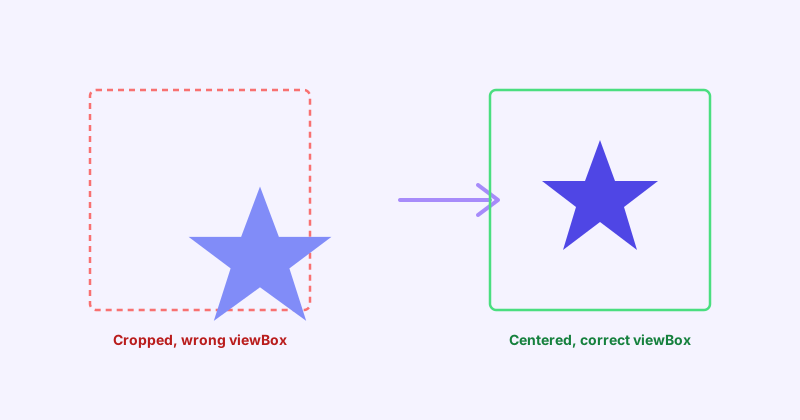
Of all the ways an SVG can go visually wrong, cropped, off-center, stretched, or oddly cut off, the underlying cause is very often the same single attribute: viewBox. It’s easy to miss because it doesn’t look like it should matter much, four numbers separated by spaces, but it’s doing more work than almost anything else in the file. This guide explains exactly what those four numbers control and walks through fixing a broken one step by step.
- viewBox defines the internal coordinate system your shapes are drawn in, separate from the SVG's actual display size.
- A missing or incorrect viewBox is the most common reason an SVG renders cropped, offset, or stretched.
- Fixing one means recalculating it from your content's actual bounding box, not guessing at round numbers.
What viewBox actually does
The viewBox attribute takes four numbers: min-x, min-y, width, and height.
<svg viewBox="0 0 100 100" xmlns="http://www.w3.org/2000/svg">
  <circle cx="50" cy="50" r="40" fill="#4F46E5" />
</svg>
Read together, those four numbers say: “the visible drawing area starts at coordinate (0, 0), and extends 100 units to the right and 100 units down.” Every shape inside the SVG is positioned using that internal coordinate system, completely independent of whatever physical size the SVG is actually displayed at on the page.
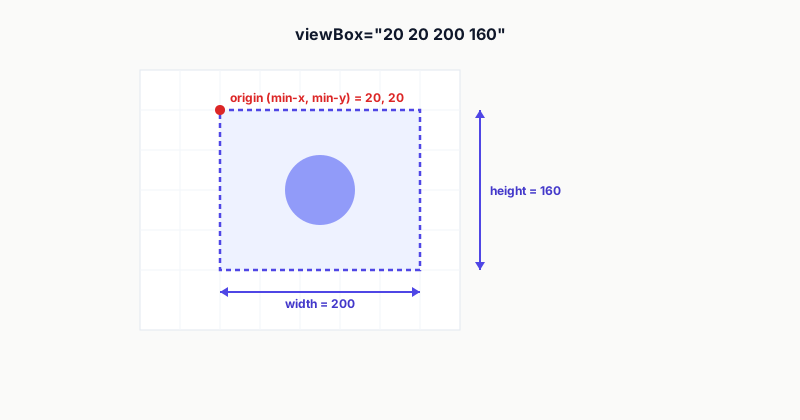
This is the mechanism that lets a single SVG icon, drawn once in a 24×24 coordinate space, render correctly whether it’s displayed at 16 pixels or 400 pixels. The browser maps that internal 24×24 grid onto whatever the actual rendered size is, scaling everything inside proportionally.
viewBox versus width and height: two separate jobs
It’s easy to conflate viewBox with the SVG’s width and height attributes, but they answer different questions:
viewBoxanswers: “what coordinate space were the shapes drawn in?”widthandheightanswer: “how large should the SVG actually appear on the page?”
An SVG can have a viewBox of 0 0 24 24 and be displayed at width="200" height="200", and it’ll scale up cleanly, because the browser is stretching that 24-unit coordinate grid to fill 200 physical pixels. If you omit width and height entirely (common when SVG is styled with CSS instead), the SVG typically fills whatever space its container gives it, still scaled according to the viewBox.
Where this gets confusing is preserveAspectRatio, a related attribute that controls what happens when the viewBox’s aspect ratio doesn’t match the displayed width-to-height ratio. Its default value, xMidYMid meet, keeps proportions intact and centers the content, adding letterboxing if needed rather than distorting the image. Setting it to none instead allows the image to stretch to fill the exact dimensions given, ignoring the original aspect ratio entirely, which is occasionally useful but is also a common accidental cause of a squished-looking icon.
Why SVGs actually break: the common causes
In practice, a broken viewBox usually falls into one of a small number of patterns:
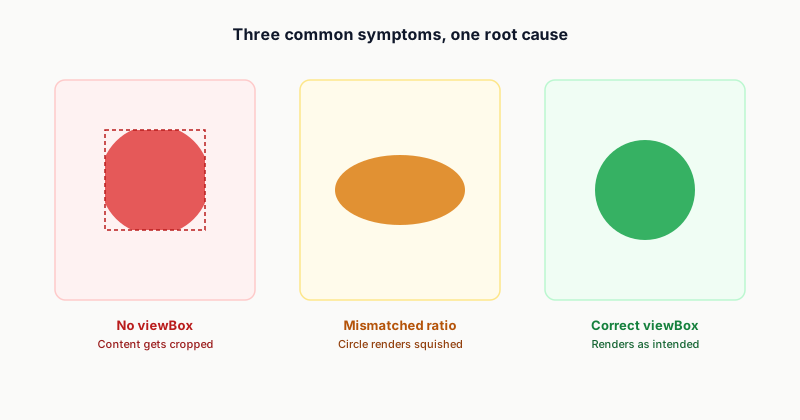
- No viewBox at all. The SVG renders at a fixed pixel size and often gets cropped rather than scaling responsively to fill its container.
- A viewBox that no longer matches the content. This happens most often after hand-editing an SVG, moving or resizing a shape without updating the viewBox to match its new bounding box leaves the coordinate system out of sync with where the content actually sits, so part of the image gets cut off or pushed out of frame.
- A viewBox with the wrong aspect ratio for how it’s displayed. If the internal coordinate space is, say, a 2:1 rectangle but the SVG is forced into a 1:1 display box without
preserveAspectRatiohandling it gracefully, the image stretches or squishes. - A viewBox stripped during export or conversion. Some raster-to-vector conversion tools and older export pipelines omit the
viewBoxattribute entirely, particularly when converting a simple raster image with an Image to SVG Converter, it’s worth confirming a viewBox was actually included in the output before using the file.
How to fix a broken viewBox, step by step
Fixing a broken viewBox comes down to recalculating it based on where your content’s shapes actually sit, not guessing at round numbers.
- Find the actual bounding box of your content. This means the smallest rectangle that fully contains every shape in the SVG, its leftmost, rightmost, topmost, and bottommost points.
- Set
min-xandmin-yto the top-left corner of that bounding box. If your content starts exactly at the origin, these are both0. If a shape was moved and now starts at, say, x=15, yourmin-xneeds to reflect that, or the content will render partially or fully out of view. - Set
widthandheightto the actual span of the bounding box, how far the content extends horizontally and vertically from that top-left corner. - Re-render and visually confirm nothing is cropped or offset. A SVG Viewer is a fast way to check the result renders as expected before shipping it.
Doing this calculation by hand on a complex SVG with many shapes is tedious and error-prone, which is exactly the kind of task worth automating rather than doing manually. A ViewBox Fixer calculates the correct viewBox directly from your SVG’s actual rendered content, handling the bounding-box math for you. From there, if any manual fine-tuning is still needed, a SVG Editor lets you adjust the values and see the result update live.
The short version
viewBox defines the coordinate grid your SVG’s shapes are drawn on, separate from the size the image is actually displayed at. Most “broken SVG” symptoms, cropping, offset content, stretching, trace back to this one attribute being missing, stale, or mismatched with how the image is displayed. Fixing it means recalculating the four values from your content’s real bounding box, either by hand for simple cases or with a tool that does the bounding-box math automatically for anything more complex.