If you’ve worked on the web at all, you’ve used SVG files without necessarily thinking much about what they are. That little search icon in a navbar, a company logo that looks perfectly crisp whether it’s the size of a favicon or a billboard, an animated loading spinner — there’s a very good chance all of those are SVGs. This guide covers what SVG actually is, how it’s genuinely different from formats like PNG and JPG, what’s inside an SVG file, and where it fits into a real design or development workflow.
- SVG stores images as math-based shapes, not pixels — so it scales to any size with zero quality loss.
- SVG is plain XML text under the hood, which is why it can be styled with CSS, scripted, and edited directly.
- It's the right tool for icons, logos, and illustrations — not for photos or highly detailed continuous-tone images.
What SVG actually stands for, and what that means in practice
SVG stands for Scalable Vector Graphics. Both halves of that name matter.
“Scalable” means an SVG image can be resized to any dimension — tiny or enormous — without losing quality. There’s no blur, no pixelation, no soft edges. “Vector” is the reason why: instead of storing an image as a grid of colored pixels, SVG stores it as a set of mathematical instructions describing shapes — lines, curves, points, and fills — that a browser or app calculates and draws fresh every time, at whatever size is needed.
The other detail baked into the name that’s easy to miss: SVG is an XML-based format. That means an SVG file is, underneath everything, just structured text. You can open one in a plain text editor and read it. That single fact is responsible for most of what makes SVG genuinely useful to developers, not just designers — more on that shortly.
Vector versus raster: the actual difference
Most images you encounter day to day — photos, screenshots, JPGs and PNGs exported from a camera or a design tool — are raster images. A raster image is a fixed grid of pixels, each one holding a specific color value. Zoom in far enough on any raster image and you’ll eventually see the individual colored squares that make it up. Scale a raster image up beyond its original resolution, and there’s no new information to draw from — the image just gets blurry or blocky, because the software has to guess what should go between the pixels that already exist.
A vector image has no fixed resolution at all. Here’s a genuinely minimal SVG — a blue circle:
<svg xmlns="http://www.w3.org/2000/svg" viewBox="0 0 100 100">
  <circle cx="50" cy="50" r="40" fill="#4F46E5" />
</svg>
That’s the entire file. No pixel grid, no fixed width or height baked into the image data — just an instruction: draw a circle centered at (50, 50) with a radius of 40, filled in a particular shade of blue. Whether that circle renders at 16 pixels or 1600 pixels wide, the browser recalculates the same instruction and draws a perfectly smooth circle either way.
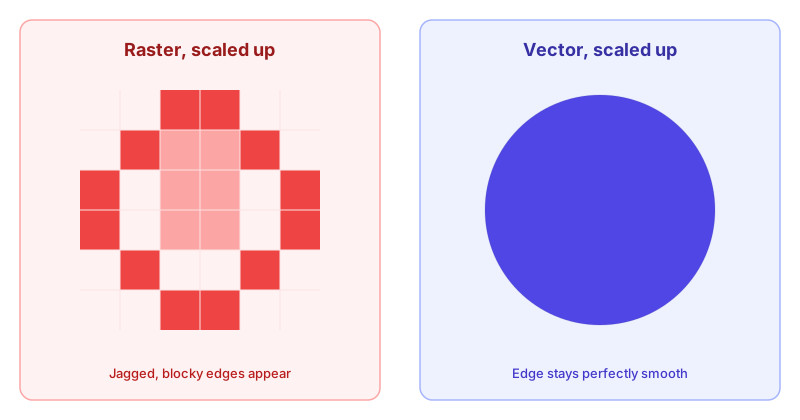
This is why logos, icons, and illustrations are so often distributed as SVG: a single file works at every size a design might need it at, from a favicon to a hero banner, with no separate exports required.
The anatomy of an SVG file
Every SVG document has a root <svg> element, and almost every one you’ll actually work with includes a viewBox attribute, which is worth understanding early since it trips up more people than anything else about the format.
<svg xmlns="http://www.w3.org/2000/svg" viewBox="0 0 24 24">
  <path d="M12 2L2 7l10 5 10-5-10-5z" />
</svg>
viewBox="0 0 24 24" defines an internal coordinate system: the first two numbers are the top-left corner (almost always 0 0), and the last two are the width and height of that internal coordinate space. Everything inside the SVG is positioned using those internal coordinates, completely independent of whatever size the SVG is actually displayed at on the page.
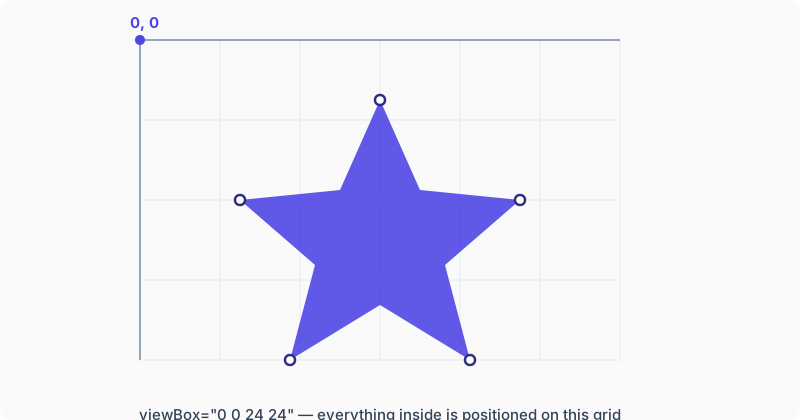
This is the mechanism that makes an icon drawn in a 24×24 coordinate space render correctly whether it’s shown at 16px or 200px — the viewBox scales, the coordinates inside stay proportional. (If a viewBox is missing, wrong, or was accidentally stripped by an export tool, an SVG can render cropped or distorted in confusing ways — enough of its own common headache that we built a ViewBox Fixer specifically for diagnosing it.)
Inside that root element, an SVG is built from a small set of drawing primitives:
<path>— the most flexible element, capable of drawing any shape (straight lines, curves, complex outlines) using a compact string of drawing commands in itsdattribute. Most icons and logos are made almost entirely of<path>elements.<rect>,<circle>,<ellipse>,<line>,<polygon>— simpler shape primitives for exactly what their names suggest.<text>— actual, real, selectable text rendered as part of the graphic (worth noting: this is different from converting text into traced vector outlines, which is its own specific technique for when a design needs to be font-independent).<g>— a group element, used to bundle other elements together so they can be transformed, styled, or moved as a unit.<defs>,<symbol>,<use>— used for defining reusable pieces of an SVG once and referencing them multiple times, the foundation of techniques like icon sprite sheets.
None of this requires memorization to use SVG effectively day to day — but recognizing these elements is the difference between an SVG file being an opaque black box and something you can actually read, tweak, and debug directly.
Why SVG matters to designers
For anyone doing visual design work — logos, icons, illustrations, UI graphics — SVG solves a problem that used to require exporting the same asset at three or four different resolutions (@1x, @2x, @3x, and so on) to cover different screen densities. A single SVG covers all of them, because it isn’t tied to a resolution at all.
It’s also, functionally, still an editable design file. Because the shapes are stored as real, structured data rather than baked-in pixels, an SVG can be reopened in a vector editor and adjusted — a curve nudged, a color swapped, a shape resized — without any generational quality loss the way repeatedly re-saving a JPG causes.
Why SVG matters to developers
This is where the “it’s just XML” detail from earlier stops being a technical footnote and starts being the actual point.
Because an SVG’s shapes are real markup, not a flattened image, they can be styled with CSS the same way any other HTML element can — including on hover, on focus, or in response to a class toggled by JavaScript. A fill color set to currentColor will inherit the surrounding text color, meaning one icon file can automatically match a light theme, a dark theme, or a hover state without needing multiple exported versions.
That same “it’s just markup” property is also why SVGs can be genuinely animated (with CSS transitions, CSS keyframes, or JavaScript manipulating individual path data) rather than only played back as a fixed video-style file. And it’s why an SVG can be inlined directly into a page’s HTML, converted into a React or Vue component, or combined with other icons into a single sprite sheet referenced by ID — all things that are simply not possible with a PNG or JPG, because there’s no internal structure to work with once an image has been flattened into pixels.
Where SVG genuinely isn’t the right choice
None of this means SVG is universally better than raster formats — it solves a specific kind of problem, and using it outside that problem tends to backfire.
Photographs are the clearest example. A photo has continuous, complex variation in color and tone across every pixel — there’s no small set of clean geometric shapes that could reasonably describe it. Attempting to represent a photo as vector paths either produces an enormous, unwieldy file trying to approximate all that detail, or a result that looks nothing like the original. JPG (for photos) and PNG (for images needing transparency or sharp edges without heavy detail) remain the right tools there.
Extremely intricate illustrations can run into a related issue: a vector image with tens of thousands of individual path points can end up rendering more slowly, and in a larger file, than a well-compressed raster version of the same image would. Vector isn’t automatically lighter-weight — it’s lighter weight specifically for images that are naturally made of clean shapes, like icons, logos, and geometric illustrations.
A practical SVG workflow
Working with SVG day to day usually touches a few recurring tasks, and it’s worth knowing what each one is actually for:
- Editing markup directly. For small, targeted changes — recoloring a shape, tweaking a path, cleaning up messy export markup — working with the raw code is often faster than reopening a design tool. A browser-based SVG Editor covers this without installing anything.
- Inspecting an unfamiliar file. Before editing or shipping a downloaded or exported SVG, it helps to actually see its structure and confirm it renders correctly — an SVG Viewer is useful for a quick sanity check.
- Fixing scaling and cropping bugs. A missing or incorrect
viewBoxis one of the most common reasons an SVG looks fine in one context and broken in another — the ViewBox Fixer diagnoses and corrects this directly. - Turning a raster image into a vector. A logo that only exists as a low-resolution photo or scan can be traced into real vector paths with an Image to SVG Converter, though it works best on simple, high-contrast source images rather than photographs.
- Combining many icons efficiently. For a project using dozens of icons, bundling them into one referenced file with the
<symbol>/<use>technique cuts down on repeated markup — a SVG Sprite Generator automates building that file correctly. - Using SVGs as real components. In a React or Vue codebase, pasting raw SVG markup usually needs manual cleanup (
classtoclassName, style strings to objects, and so on) — an SVG to React & Vue Component Converter handles that conversion directly.
The short version
SVG is a text-based, resolution-independent image format built for exactly the kind of graphics that are made of clean shapes rather than continuous photographic detail: icons, logos, illustrations, and UI graphics. It scales perfectly, it can be styled and animated the way ordinary markup can, and — because it’s just structured text under the hood — it’s genuinely editable and inspectable in a way flattened image formats never are. Knowing when to reach for it, and what’s actually happening inside the file when you do, is most of what there is to know to use it well.